

👉
Click here to download this planner background
👈
(Right-click and choose “Set as Desktop Background” or use it in your favorite wallpaper organizer!)
🧠 Object Permanence and Neurodivergent Brains
If you live with ADHD, Autism, or both (AuDHD), you may struggle with something called object permanence—and no, it’s not just about forgetting where you left your keys.
For neurodivergent brains, object permanence can mean completely forgetting about a task, project, or idea the moment it’s out of sight. That sticky note you moved? That file you minimized? Gone from your working memory.
This difference is why visual systems that stay in view—like sticky notes or desktop backgrounds—are so powerful. They anchor your attention and create an external structure for a brain that often loses track of what it can’t see.
⚠️ Why the Eisenhower Matrix Doesn’t Always Work for Us
The traditional Eisenhower Matrix asks you to sort tasks by “Urgent” and “Important.”
But here’s the problem: If you’re ADHD or autistic, everything can feel important. And if urgency is tied to deadlines or external pressure, it may only register when the deadline is now. Meanwhile, something personally meaningful (but not urgent) can get lost in the shuffle—until it’s too late.
The result? Overwhelm, shame, task paralysis, or burnout. Sound familiar?
That’s why this remixed version of the matrix uses language and categories that speak to how tasks feel—not how society labels them.
I based it on two questions:
- Does this need attention soon, or can it wait?
- Does this feel energizing, or is it draining?
That shift changes everything. It allows you to prioritize based on internal experience, not external expectations.
So today, I’ll show you how to create a desktop wallpaper in Canva that includes this brain-friendly grid plus space for your color-coded sticky system. This way, you can see what matters, track your progress, and manage your mental energy all in one place.
📋 What You’ll Need
- A free Canva account (canva.com)
- Your computer’s screen resolution (e.g., 1920×1080)
- Sticky Notes (digital or physical)
- A sense of how your tasks feel to you (energizing? or draining?)
🧠 Step-by-Step Instructions
Let’s get started building yours—follow this guide step by step:
STEP 1: Set Up Your Canva Canvas
Go to Canva.com Click “Create a design” → Type “Desktop Wallpaper” into the design search bar. Choose a template. I used “Pink Aesthetic Desktop Wallpaper.” - Alternatively, create your own. Set the dimensions to 1920×1080 or match your screen’s resolution.
- Delete any parts of the template you don’t absolutely need to reduce visual clutter.
- I kept the background, a few decorative images, and a space for an audio widget where I’ll link to focus music or my Audible app.
- Add images or placeholders for widgets and files as desired. I included a calendar and folder icons (you can find both under Elements → Graphics in Canva).
⚠️ Sensory tip: If your brain gets tired from too much visual input, try using soft colors, fewer widgets, and more white space. A calmer design helps your background stay supportive—not overwhelming.
⚠️ Pro Tip: If an object is made up of several grouped pieces, click and drag to highlight them, then hit “Group” so they move as one. You can always ungroup later to edit specific parts.
Here’s what my template looked like at that point:

🌀 STEP 2: Add Your “Flow Grid”
This Flow Grid is your neurospicy-friendly version of the Eisenhower Matrix—centered around energy, urgency, and task resistance, not abstract “importance.” Think of it as a brain-aligned tool to support executive function and visual thinking.
When filled out, this grid will contain sticky notes or task cards organized into four actionable quadrants. You’ll use it to help decide what to do now, what to save for later, and what needs a creative workaround.
🛠️ How to Create Your Flow Grid in Canva:
- Create a 2×2 grid: Use Canva’s “Table” or a graphic element with a 2×2 layout. Place this in the center or left side of your canvas so it’s easy to see.
- Label the axes visually: Use images that make sense to your brain. Canva’s Elements tab is your friend here!
- Y-Axis = Energy Levels:
– At the top, add something that symbolizes energizing—like a ⚡ lightning bolt, ☕ coffee cup, or ⭐ star.
– At the bottom, add something that shows draining energy—like a 💤 sleepy face, 🔋 low battery, or a slumped figure icon. - X-Axis = Time Urgency:
– On the left side, add something that says urgent or needs attention soon—like a ❗exclamation mark, ⏰ alarm clock, or 🔔 bell.
– On the right side, add something that means can wait or relaxed—like a 🪷 lotus flower, 🐾 lounging pet, or a 🛋️ couch. - Add four text boxes—one for each quadrant—to define your actions:
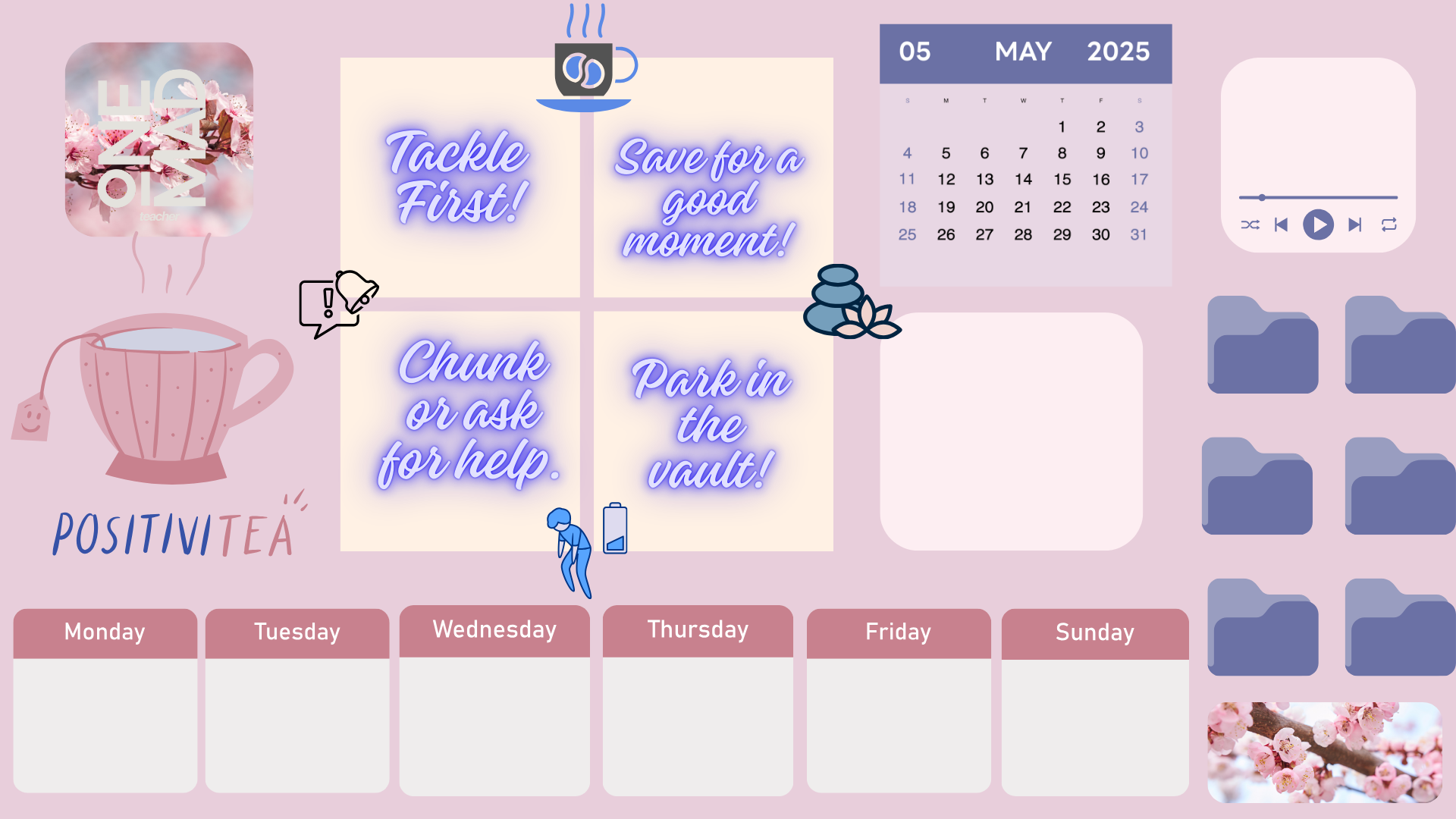
- 🎯 Tackle First – Energizing + Urgent (Upper Left)
- 💡 Save for a Good Moment – Energizing + Can Sit (Upper Right)
- 🛠️ Chunk or Ask for Help – Draining + Urgent (Lower Left)
- 🚗 Park in the Vault – Draining + Can Sit (Lower Right)

📅 STEP 3: Add Calendar Spaces for Scheduling Tasks
Add a small calendar layout to the bottom or side of your wallpaper. You can use text boxes or rectangles labeled with days of the week.
These spaces are not for detailed schedules. Instead, they’re a flexible zone where you can visually assign tasks from your matrix to the week—giving each task a soft, visual “parking spot.”
This gentle time-assignment helps move a task from abstract (“important, someday”) to something tangible and grounded in the week ahead. For example, when setting up my week on a Sunday night:
- If it’s energizing and urgent, I might assign it to Monday.
- If it’s draining and urgent, I break it into chunks and spread them across several days.
- If it’s energizing and not urgent, I place it on a busy day—something to lift me up between meetings.
🧠 Just seeing where things could live helps reduce decision fatigue throughout the week.
🎨 STEP 4: Add Finishing Touches
- Add any final elements that feel helpful—but keep the visual vibe calm and uncluttered.
- Drop in icons or gentle affirmations if helpful:
- “Out of sight ≠ out of mind”
- “Progress over perfection.”
- “Permission to pace myself.”
- Optional: Add personal reflection zones in the margins like:
- Daily Notes 📝
- Mood Check 🧘
- Today’s Wins ✨
✅ Here’s the final version of the desktop wallpaper:

💾 STEP 5: Download & Set as Wallpaper
- In Canva, click Share → Download
- Choose PNG or JPG format
On your Mac:
- Open System Settings → Wallpaper
- Select your downloaded Canva image and set it as your desktop background
⚠️ If your wallpaper does not fit or looks stretched: Go to your display or wallpaper settings and make sure you’ve selected “Fit to Screen.” This option ensures your layout appears exactly as you designed—nothing cut off, zoomed in, or misaligned.
✅ Your sticky notes will now float on top of your background—and your brain will have a clear, visible roadmap all day long.
🧷 STEP 6: Use the Color-Coded Sticky Note System
I use color coding to help me track how long tasks have been lingering—and to make sure I’m balancing my energy between work and personal life. I use primary colors for work and secondary colors for personal tasks:
🔴 Week 1 – Work = Red
🟠 Personal = Orange (or Gray in the Stickies app)
Examples:
- Red (Work): Grade student projects, plan next week’s lessons, update IEPs, respond to parent emails
- Orange/Gray (Personal): Do dishes, throw out old mail, call city for mattress pickup, write a blog, make a YouTube video
🟡 Week 2 – Work = Yellow / 🟢 Personal = Green
🔵 Week 3 – Work = Blue / 🟣 Personal = Purple
Each week, I bump to the next color in the rainbow. (ROYGBIV—though let’s be real, indigo is always ignored.)
There are no indigo sticky notes. It’s the forgotten middle child of the rainbow—neurospicy, mysterious, and completely unsupported by the Stickies app. RIP indigo, you deserved better.
If I still see red or orange/gray stickies hanging around during blue/purple week, it’s a signal: I’m either procrastinating or need to chunk that task down into something more manageable.
Here is a look at my desktop with some tasks sorted onto the Flow Grid:

📝 How to Use the Stickies App on Mac
Once your wallpaper is set as your background, you can use the built-in Stickies app to create a visual to-do system right on top of it. Here’s how:
- Open the Stickies app: Press
Command + Space, type “Stickies”, and hitEnter. - Create a new sticky note: Go to File → New Note or press
Command + N. - Resize and position: Drag your sticky to the appropriate quadrant or weekday on your wallpaper.
- To change the note color:
- Click to highlight the note.
- Go to the top menu → Color → Select your color.
- Note: The app doesn’t have orange, so I use gray instead for Week 1 personal tasks.
- Type your task directly into the note. Use formatting for clarity:
Command + Bfor bold, or add tags like “Wk1” or “Wk2” to track weeks. - Repeat for each task. You’ll build a live, visual task system that stays in view and tracks both what you need to do and how long it’s been sitting there.
Here’s a look at my desktop with some of the tasks slotted into days:

🌟 Bonus Tips
- Use bold headers or symbols on your sticky notes to show what week they belong to (ex: “Wk1,” “Wk2”).
- If there’s a red sticky note still in your matrix and you’re adding blue ones… that red task has been sitting. Pause and check: Do you still need to do it—or is it time to let it go?
- Supercharge your wallpaper with widgets:
These help bring even more of what matters into your visual space—without needing to open a browser or app:- 🗓️ Your digital calendar (Google Calendar, Apple Calendar, etc.)
- 🧠 Motivational quotes or mantras
- ⏰ A large, visible clock to help anchor your sense of time
- 🔊 An Audible widget or mini media player for podcasts, lo-fi beats, or focus-friendly soundscapes
- 📌 Mac users: Click the date/time in the top-right corner of your screen → scroll → click “Edit Widgets.”
You can also right-click your desktop and choose “Edit Widgets.”
🎯 What Success Looks Like
- ✅ Your wallpaper acts as a visible to-do map
- ✅ You track aging tasks by color
- ✅ You use the grid to guide where your energy and attention go
- ✅ You stop forgetting tasks just because they’re out of sight
Try this:
Use your wallpaper for one full week. Observe which tasks keep slipping vs. which ones you’re drawn to. Adjust your layout, labels, or colors to meet your real needs.
Want a free template or to co-create a version of this layout? Reach out and I’ll send you one!
🧠 Final Thoughts
If traditional planners or systems never worked for you, it’s not because you failed—it’s because they weren’t built for your brain.
This layout is different. It’s a visual anchor that meets you where you are:
- 🖼️ It’s persistent
- 🌈 It’s colorful
- 💬 It respects that every task feels important—but some need more support or energy than others
Let your screen hold what your brain might forget.
Let color guide your focus.
Let this wallpaper be your gentle, judgment-free roadmap.
You’re not behind—you’re just finding your rhythm.
And that rhythm matters.
Have questions about how to customize this system?
Want to share your own neurodivergent planning wins or challenges?
👇 Drop a comment below! I’d love to hear how this works for you—or what you’d tweak to fit your brain better.
— Levlyn Emet Quill
Leave a Reply